I’ve noticed that lots of people like to fill their iPhone screen entirely with icons. If they have more than one screen’s worth, they make sure to put the icons of the applications they use most on the first screen. This poses a couple of issues with me: 1) it makes it harder to find the apps that you really need to use at a moment’s notice, and 2) it turns your iPhone into a sort of black hole, with some of those time-wasting apps seducing you into doing things you don’t need to be doing, or accessing information you don’t really need to have.
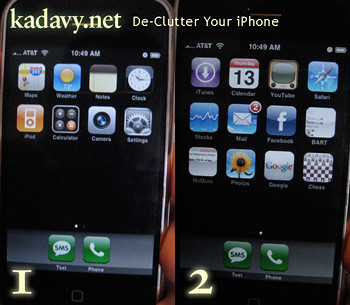
So, I take the approach of putting those apps that aren’t big time wasters, but that I often need to use at a moment’s notice, on the first screen. Here’s an overview of the first screen of icons on my iPhone:
I put the key communication functions on the grey bar at the bottom. There’s really just two of these in my opinion, SMS messages, and Phone functionality.
And what’s up with the ones on the second screen? Well, more than anything, since I use my iPhone for an alarm, the last thing I want to do before I even get out of bed is check e-mail, stocks, or Facebook on impulse.
The one wish I have is that my iPhone could default to that first screen, so that the second one doesn’t show up next time I wake my iPhone after an e-mail session. Adopting this strategy will save you time keep you sane, give it a shot.
It’s funny that one of the most vital of all of our activities is, for many, one of the least considered. Few of us take the time from our hectic lives to think at all about how we breathe, or to even learn how to do so properly. The best ways to master the art of breathing are by practicing Yoga or Meditation. If all of that sounds too complicated and new-agey for you, just start off with this simple exercise:
Sit “Indian Style” with a pillow under your bum. Sit up straight, with your chin bent slightly forward so that the back of your skull feels like it forms a vertical line with your spine.
Close your eyes and press your left nostril closed with your left thumb. Inhale gently through your right nostril. Be patient and calm – it may be very difficult at first to breathe in, especially if you are prone to being congested, but if you are patient, you will be surprised at how your airways will start to open up.
Once you have inhaled, let go of your left nostril, and close your right nostril with your left index finger. Exhale slowly through your left nostril.
After you finish exhaling through your left nostril the third time, start inhaling through that same nostril, reversing the sequence: inhaling through the left, and exhaling through the right. Do this for three breaths as well.
As you breathe in, concentrate only on the sensation of your breath, and it’s effects on your body. You may be able to feel the blood vessels in your nostrils and face start to pulse as your heart beats – this is a good start, so concentrate on this sensation. After you have mastered this exercise, continue on after it simply breathing through your (unobstructed) nose.
Once you get used to concentrating on the sensation of your blood vessels pulsing, start to concentrate on your belly as you breathe in and out. You may even start to feel the food digesting in your very stomach!
Concentrating on your breathing will not only clear your mind of all of the inconsequential gunk that has built up in it, it will also stimulate blood flow through your whole body.
Not only is concentrating on the sensation of your breath important, but how you breathe can effect how you feel, as well. Feeling depressed? You may need to breathe more with your chest. Overly anxious? Maybe there isn’t enough belly in your breath. If you lie on your back with a hand on your belly and a hand on your chest, both of them should rise when you breathe, your chest slightly less than your belly.
Breathing is a simple – yet vital – life hack indeed. Next time you’re cussing out the Escalade that beat you to the closest parking spot to the door of your favorite strip-mall supermarket, just remind yourself that breathing is way more important.
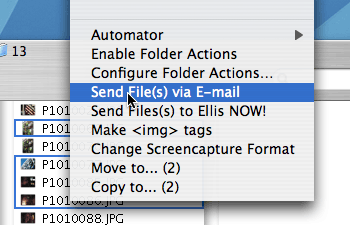
OnMyCommand is a mind-blowingly useful contextual menu plugin for OS X that allows you to execute UNIX commands from your right-click menus. Fortunately for the UNIX illiterate among us, users have submitted hundreds of useful commands that will give you Quicksilver-like savings of time and RSIs. The best part is, you don’t have to learn anything fancy – it puts your most common tasks just a right-click away. Here are some of the commands I use regularly:
h3. Send File(s) via e-mail
Frustrated by the Finder<Services<Mail<Send File command’s inability to attach multiple files to an e-mail, not to mention the clunkiness of this “shortcut?” This command attaches multiple files to new Mail.app e-mail and populates the subject line with the file names. Since commands can be edited, I even made customized copies of this command to then immediately send the e-mail to people I send attachments to most, or to populate the address field with their e-mail addresses, so I can then write them a short message before sending. This command has easily saved me hours.
Keeping your old e-mail is useful for finding contacts that you don’t have in your Address Book, referencing information, and leaving something for historians to piece your life together when they write your biography. But having a mail file that is too large can make things a little slow, so try this to keep less-frequently referenced (older) mail in a safe place, while not letting its presence effect your enjoyment of reading your new mail:
Does anyone else feel like maybe grocery shopping is overrated? Since the big move, I have done real, old-fashioned, grab-a-cart-and-fill-it-up-with-all-of-the-stuff-you-think-you’ll-need-for-the-next-two-weeks (as well as everything else that catches your eye) grocery shopping a grand total of once. I have simply eaten out for every meal, or grabbed take-out from a place in the neighborhood. I have more time to work on the things that I’m good at and passionate about, I’ve been eating more rounded meals with all of those fruits and vegetables I had been hearing so much about, and I’m more apt to spend quality time with friends by virtue of wanting dining company. Now, I haven’t done a cent-for-cent analysis of the financial implications of this strategy, as my religion forbids it, but since I’m not making impulse buys, not eating unnecessary snacks, and not letting gigantic jars of pickles spoil in my fridge, I’d have to say I’m spending somewhere near the same amount of money on food, and I’m much happier not having to worry about cooking, or the phthalates being leeched into my preservative-ridden food by my TV dinner tray. And from an economic standpoint, I imagine a restaurant is far more efficient in utilizing its inventory and producing quality meals for cheap than I could ever hope (or care) to be.
I recognize that this philosophy is a bit single-with-cooking-skills-of-Ted-Kaczynski-centric, but dangitt, I really like life without grocery shopping. Anyone else tried it?
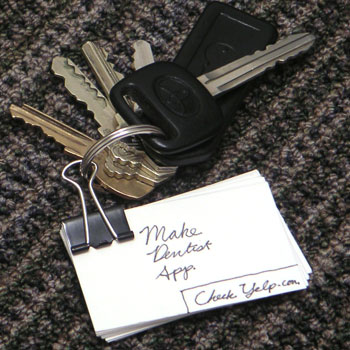
I have carried around a notebook for some time now, but the linear format of notebooks has never really suited me. Let’s say I’m out and about – here’s a scenario that may occur if I’m carrying around a notebook:
With so much fuss about the nano, I feel like the iPod Shuffle doesn’t get the attention it deserves. It seems more primitive than it really is – understanding the controls is the key to realizing the Shuffle’s potential. Here are some intelligent nuances that make the Shuffle very dynamic.
I’ve noticed in my short existence that I tend to do many things differently from most people. Some of those things probably work just as well, whereas others make me wonder “why doesn’t everyone do this?” Here are eight things that may make you feel like you’re cheating the system, too (in no particular order): keep on reading »
In finally being on a team responsible for the development of somesiteswithconsiderablefunctionality, I have been searching for a way to communicate the site visually so that the entire team can have a set of documents to work off of for each release. After spending three years at an architecture firm and seeing the documents involved in getting a building built, I was sure there must be some equivalent visual language and documenting system for web design. After some research, I found that visual language, and a nicely-priced tool for executing it.